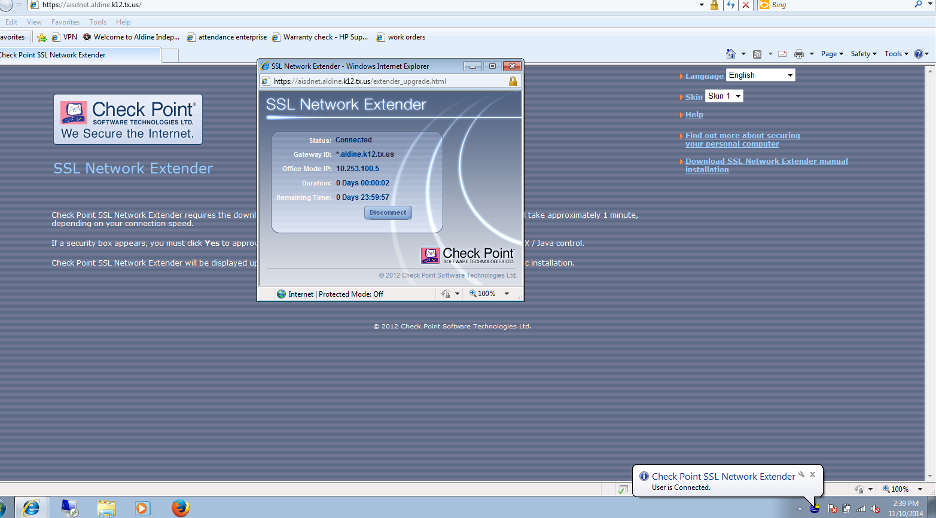
Using Active X and Internet Explorer to Access the VPN
Changes have been made to the firewall due to the recent breakage of the VPN due to Java 8 Update 131. The firewall will now force Internet Explorer to use Active X instead of Java. This eliminates the sudden breakage of the VPN each time Java is updated. Firefox and Chrome are not currently supported by Checkpoint.
1. Log on to the Computer and use Internet Explorer to navigate to: https://aisdnet.aldine.k12.tx.us
2. The pop-up blocker may block this so you need to go to Internet Options by clicking on the gear icon at the top right of your browser.

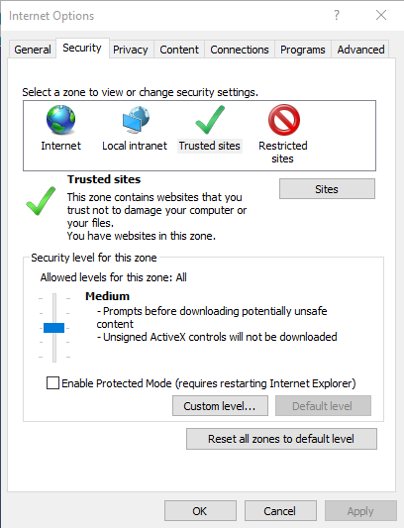
3. Go to the Security Tab and then click on Trusted Sites then select the Sites button.
4. Add https://aisdnet.aldine.k12.tx.us to the trusted sites, and click Close.


5. Under the Privacy tab click on Settings next to Turn on Pop up Blocker.
6. Add https://aisdnet.aldine.k12.tx.us to the Allowed Sites and click Close then OK
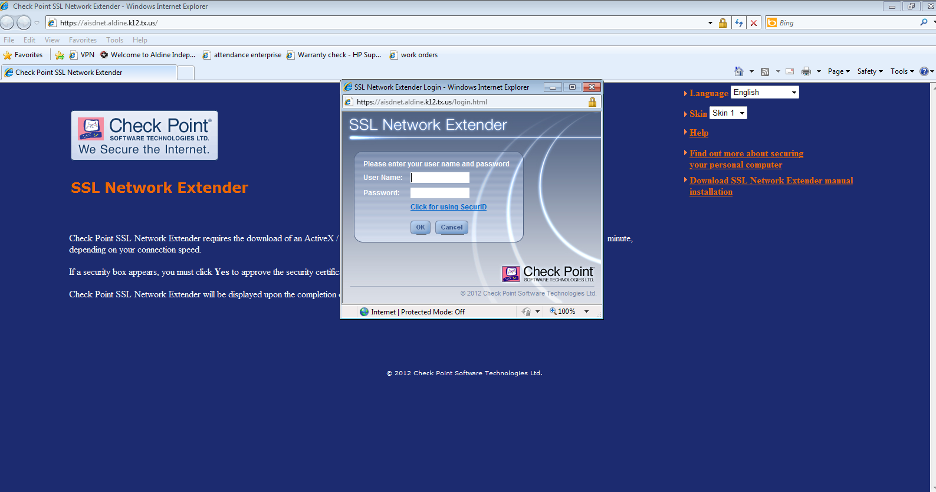
7.Relaunch Internet Explorer and go to https://aisdnet.aldine.k12.tx.us
8. Type in your username and password. This would be the same user account you use to log in to your workstation at work.
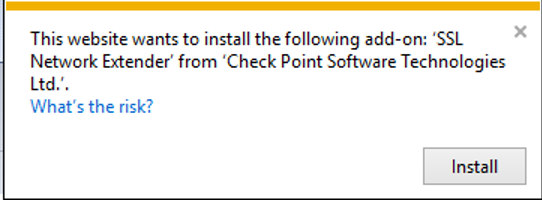
9. You should get a pop up that requires you to install the SSL Network Extender add on. Click Install
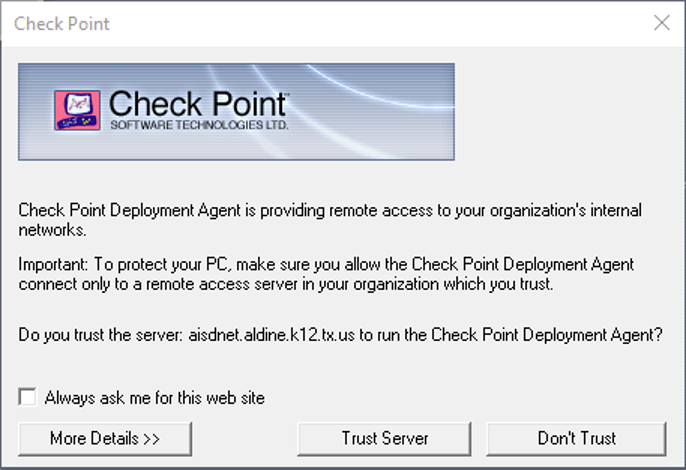
10. If the install of the SSL Network Extender plugin is successful, then you will see a Check Point pop up asking if you trust the server. Click on Trust Server
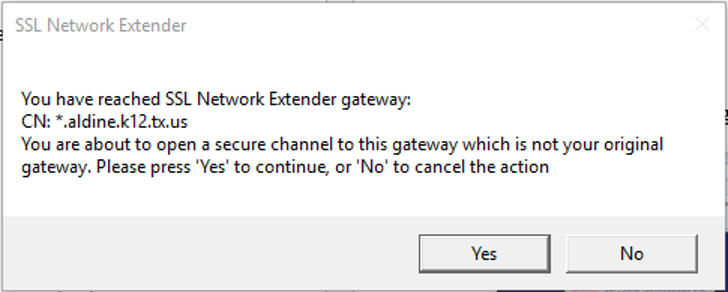
11. Once a successful login session has been established the vendor might get the following Windows Security alerts: *Accept the default setting
12. Click Yes
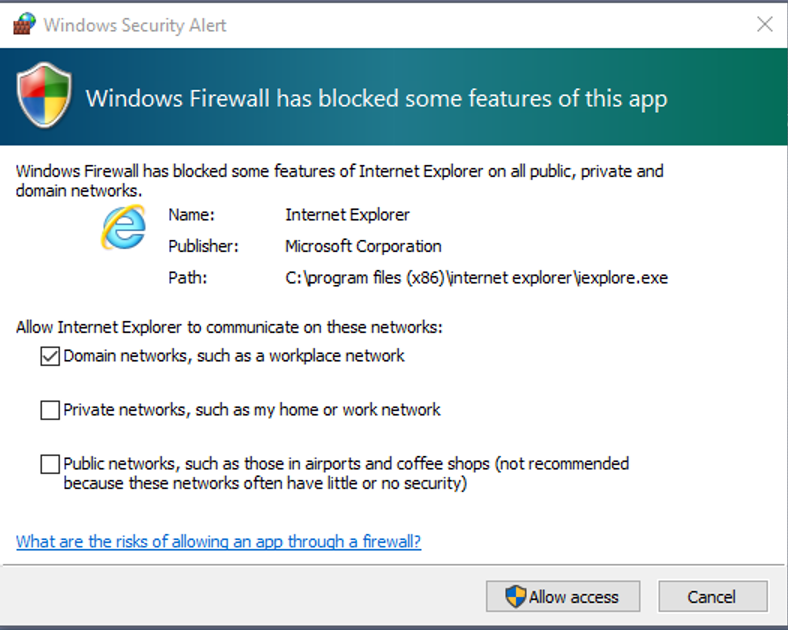
You may get the following pop up window
13. Click Allow Access
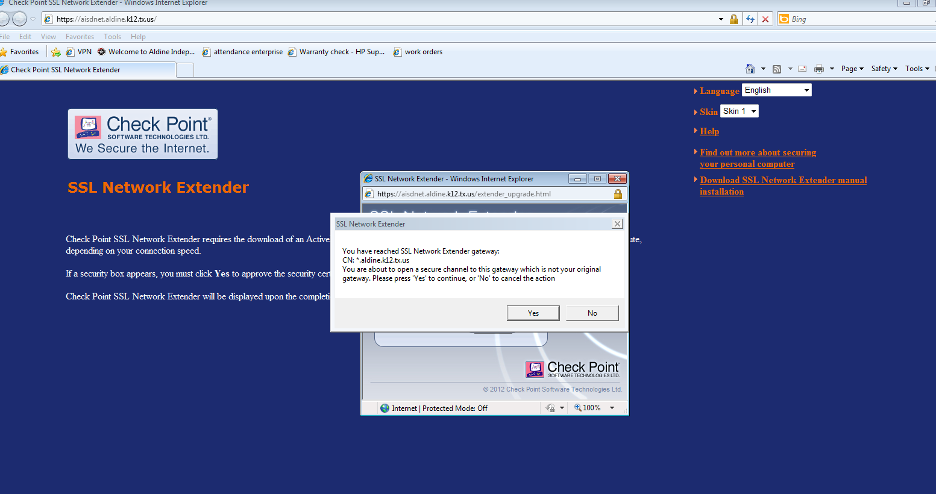
14. Click Yes
15. You will see that a connection to the VPN has been made.